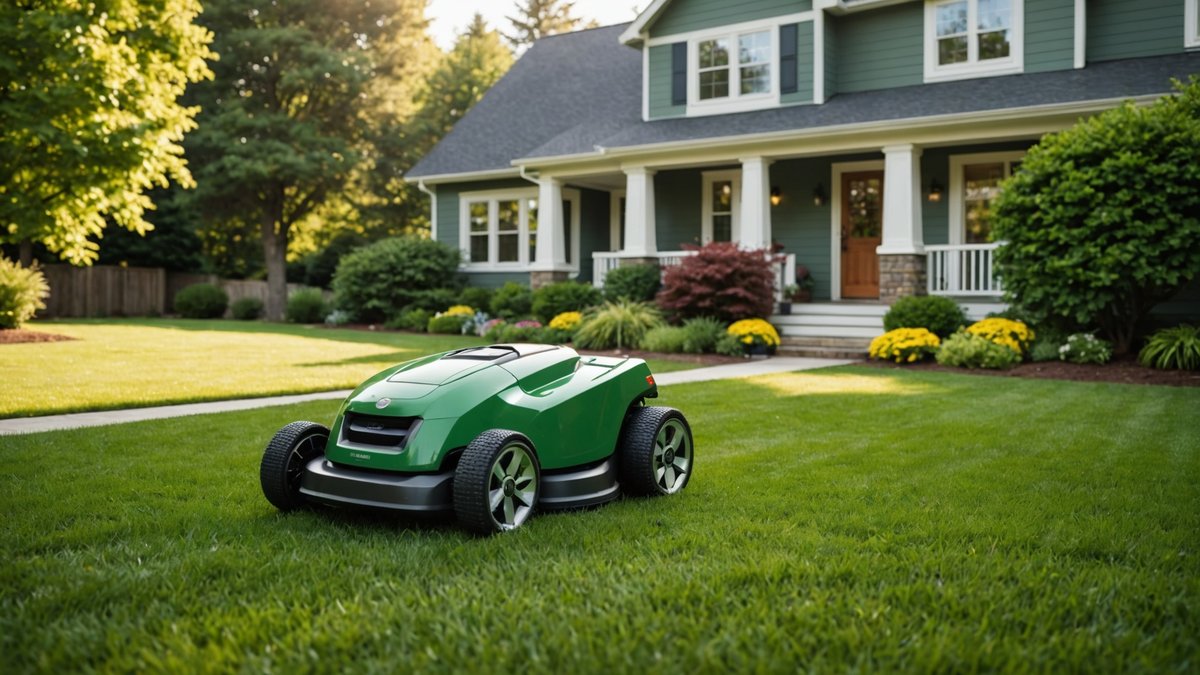
If you own an AI robotic mower or AI Robotic lawn mower, you’re probably already enjoying the convenience it offers for maintaining your lawn. But did you know that you can make it even more convenient by connecting it to smart home assistants like Alexa or Google Home? By linking your Robotic mower to these systems, you can control it using just your voice, set schedules, and even check its status without lifting a finger.
Why Connect Your Robotic Mower to Alexa and Google Home?
Integrating your AI robotic lawn mower with Alexa or Google Home offers several benefits that make lawn maintenance even more convenient:
- Hands-free control: Use simple voice commands to start, stop, or schedule your mower’s work, leaving you more time to enjoy your day.
- Effortless scheduling: Set Mowing schedules through voice commands, so you don’t have to manually adjust settings on the mower.
- Status updates: Get updates on your mower’s progress, battery status, or any issues it might encounter, all through your smart assistant.
- Seamless integration with your smart home: If you already use Alexa or Google Home for other smart devices, adding your robotic mower to the mix can help you streamline your home automation.
How to Connect Your AI Robotic Mower to Alexa
Connecting your AI robotic lawn mower to Alexa is a straightforward process, and once set up, you can start controlling it with just your voice. Here’s how you can do it:
1. Ensure Compatibility
First, make sure that your robotic mower is compatible with Alexa. Many robotic mowers are compatible with Alexa, but you should confirm this by checking your mower’s user manual or the manufacturer’s website. Some popular brands even have their own Alexa skills.
2. Set Up the Mower’s App
Most AI robotic mowers come with an app that you’ll need to download on your phone. This app is where you can set up your mower, configure settings, and control it. Ensure your mower is fully set up and connected to your home Wi-Fi network before proceeding.
- Download the app: Go to the App Store (iOS) or Google Play Store (Android) and download the official app for your mower (e.g., Robomow, Husqvarna Automower, etc.).
- Connect your mower to the app: Follow the instructions in the app to connect your AI robotic mower to your Wi-Fi network.
3. Enable the Alexa Skill
Now, it’s time to link your mower to Alexa. To do this, you’ll need to enable the corresponding Alexa skill for your mower. Here’s how:
- Open the Alexa app: On your phone, open the Amazon Alexa app.
- Go to the “Skills & Games” section: In the Alexa app, tap the menu icon (three horizontal lines) and select “Skills & Games.”
- Search for your mower brand: Type the name of your mower brand into the search bar. Look for the official skill that matches your mower’s brand (e.g., Husqvarna Automower, Robomow, etc.).
- Enable the skill: Tap on the skill, and then tap “Enable to Use.” You’ll be prompted to log into your mower’s account to link it to Alexa.
4. Link Your Mower to Alexa
Once the skill is enabled, Alexa will ask you to link your mower account with the Alexa app:
- Sign in to your mower account: Enter your login credentials for the mower app, and grant Alexa permission to control your mower.
- Complete the setup: Follow the prompts to finish linking your mower to Alexa.
5. Start Using Alexa Commands
Now that everything is connected, you can start controlling your AI robotic mower with simple voice commands. Some common Alexa commands include:
- “Alexa, start the lawn mower.”
- “Alexa, stop the lawn mower.”
- “Alexa, check the status of my mower.”
How to Connect Your AI Robotic Mower to Google Home
If you prefer using Google Assistant, connecting your AI robotic lawn mower to Google Home is just as easy. Here’s how to set it up:
1. Ensure Compatibility
As with Alexa, make sure your robotic mower is compatible with Google Home. Again, check the manufacturer’s website or user manual to confirm compatibility.
2. Set Up the Mower’s App
Before connecting the mower to Google Home, ensure your AI robotic mower is fully set up using its dedicated app, and connected to your Wi-Fi network.
- Download the app: Search for your mower’s app in the Google Play Store or the Apple App Store.
- Connect to Wi-Fi: Ensure your mower is connected to your home Wi-Fi network for seamless control.
3. Link Google Assistant with the Mower’s App
Now, let’s link your mower’s app to Google Home:
- Open the Google Home app: On your phone, open the Google Home app.
- Tap “Add”: Tap the plus sign (“+”) to add a new device.
- Select “Set Up Device”: Choose the “Set up device” option, then tap “Works with Google.”
- Search for your mower’s brand: Type in the name of your mower brand to find its Google Home integration.
- Sign in: Log in to your mower’s app account to connect it with Google Assistant.
4. Enable Google Assistant Commands
Once connected, you can start using voice commands through Google Assistant to control your AI robotic mower.
- Example commands:
- “Hey Google, start the lawn mower.”
- “Hey Google, stop the mower.”
- “Hey Google, when is my lawn mower scheduled?”
- “Hey Google, start the lawn mower.”
5. Test the Setup
Now that everything is linked, test the setup by issuing some commands to ensure that Google Assistant can control your AI robotic mower properly.
FAQ: Connecting Your AI Robotic Mower to Alexa and Google Home
Q: Do I need a special device to use my robotic mower with Alexa or Google Home?
No, you just need the app for your AI robotic mower, a working Wi-Fi connection, and either an Alexa-enabled device or Google Home device. Both systems can communicate with your mower via their respective skills or apps.
Q: Can I control my mower from anywhere using Alexa or Google Home?
Yes! As long as your mower is connected to Wi-Fi, you can control it from anywhere, provided you have an internet connection and the Alexa or Google Assistant app installed on your phone.
Q: What commands can I use with Alexa or Google Home to control my AI robotic mower?
Some common commands include:
- “Alexa, start the lawn mower.”
- “Hey Google, check the status of my mower.”
- “Alexa, stop the mower.”
- “Hey Google, stop the lawn mower.”
Q: Can I schedule my AI robotic lawn mower using Alexa or Google Home?
It depends on your mower’s app and capabilities. Most robotic mowers let you set schedules through their dedicated app, and some can sync with Alexa or Google Home for voice-based scheduling. You can ask your voice assistant about your mowing schedule, but you may still need to use the app for initial setup.
Q: Do I need to install anything additional for the integration with Alexa or Google Home?
Generally, you just need to enable the skill (for Alexa) or link the app to Google Home (for Google Assistant). There’s no additional hardware required, but you should ensure your mower is compatible with the voice assistant before attempting the setup.
Conclusion
Connecting your AI robotic mower to Alexa or Google Home can make lawn care easier and more convenient than ever before. Whether you’re controlling your mower with simple voice commands or setting up a schedule, integrating these smart home systems adds an extra layer of automation to your lawn care routine.
📰 Related Articles
🔗 Essential Resources
- 📖 Manual Finder — 51 brands, 195+ models
- 🤖 AI Support Assistant — instant troubleshooting
- 📐 Complete Guide to Robotic Mowers 2026
- 🏆 Independent Rankings 2026
- ⚠️ Buyer’s Guide: What Dealers Won’t Tell You
Author: Muazma Saeed
Muazma Saeed is a content creator at AI Mower News, writing about robotic lawn mowers, smart gardening, and outdoor tech. Muazma focuses on practical, how‑to content that helps readers with installation, maintenance, and best practices for robotic mower ownership. With a growing portfolio of articles that answer common questions and provide useful advice for both home users and commercial operators, Muazma aims to support the community of mower owners and tech‑curious gardeners.